



Prospecting · Campaigns
Prospecting on LinkedIn while limiting the risk of account restriction
The invitation, message and read limits the platform applies to each LinkedIn account, and how it spaces out actions.
5 min read
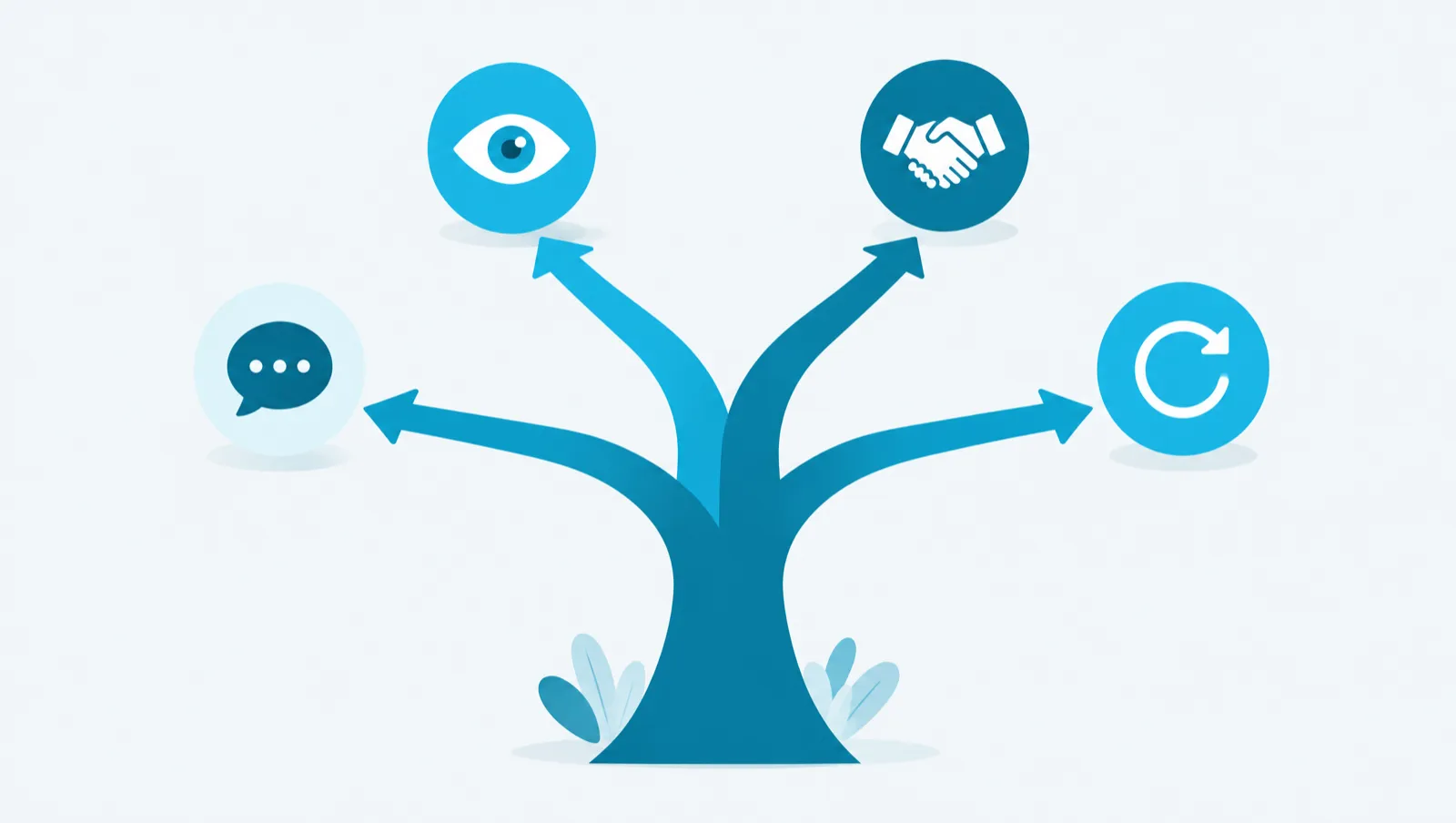
This article helps you choose the right campaign type before you build the sequence. The type depends on one criterion: the people you target are already connected to you on LinkedIn, or they are not. The type then sets the steps the campaign can contain.
LinkedIn does not let you send a message to a person who is not connected to you. LinkedIn does not let you invite a person who is already connected either. So one sequence cannot serve everyone.
In Maya Reach, you choose the type when you create the campaign, in "Campaign goal". The canvas's "Add" panel then only offers the steps allowed by this type.
| Type | For whom | Possible steps |
|---|---|---|
| Acquisition | People outside your connections (2nd and 3rd degree) | Profile visit, Like, Comment, Invitation |
| Network messaging | Your 1st-degree connections | Profile visit, Like, Comment, Message, Follow-up |
| Warm-up | Any audience | Profile visit, Like, Comment |
| Follow-up | People who have just accepted an invitation | Profile visit, Like, Comment, Message, Follow-up |
No type contains e-mail or InMail.
A list often contains both connections and people outside your network. In that case, create two campaigns: a Network messaging campaign for the 1st degree and an Acquisition campaign for the others. A person is only in one active campaign at a time. If they are already in another campaign, they are excluded when you add them, and the reason is shown.
An Acquisition campaign targets people you do not know yet. Its main step is the invitation. The Visit, Like and Comment steps can come before it: the person sees your name before they receive the invitation.
The invitation goes out without a note by default. "Send with a message" adds a note. The note is at most 300 characters on a Premium or Sales Navigator account, 200 otherwise. On a classic LinkedIn account, invitations with a note are locked by default.
The number of invitations is limited per account: 15 per day with a classic account, 25 with Premium or Sales Navigator, and 100 per week.
A Network messaging campaign targets your 1st-degree connections. It is used for an announcement, an invitation to an event or to get back in touch.
It only admits 1st-degree connections. Other contacts are excluded when you add them. A Message or Follow-up step has two exits on the canvas: "Replied" and "No answer". This lets you plan a follow-up for those who have not replied. A person who replies leaves every sequence that targets them.
Messages and follow-ups are limited to 80 per day and per account.
A Warm-up campaign only contains steps that ask for nothing: Profile visit, Like and Comment. It suits any audience, connected or not.
The visit is visible to the person. The like is on their latest post. The comment is drafted for each person when the step runs. If the person has no recent post (30 days by default), the Comment step is skipped and the sequence continues.
A Follow-up campaign starts when a person accepts an invitation sent by an Acquisition campaign. You cannot add contacts to it by hand. It has at most 3 steps, for example a thank-you message.
For it to receive people, it must be active and linked to the Acquisition campaign in "On acceptance, add to…". An inactive Follow-up campaign receives nobody, and no error message is shown. The platform can take up to 8 hours to detect an acceptance. Between two acceptances, the Follow-up campaign is empty: this is normal.
To create a campaign:
Before you choose, ask the assistant ("Campaigns" tab) how your Target is split:
How many people in my default Target are 1st degree vs 2nd?
Then describe your goal. The assistant chooses the type based on the connection degree:
Build an invitation campaign for people in my Target « Small business CFOs » who aren't connected yet.
The assistant stops at the draft. You activate the campaign yourself, on its screen.
The guide chapters that detail what this article describes.