


Prospecting · Campaigns
Prospecting on LinkedIn while limiting the risk of account restriction
The invitation, message and read limits the platform applies to each LinkedIn account, and how it spaces out actions.
5 min read
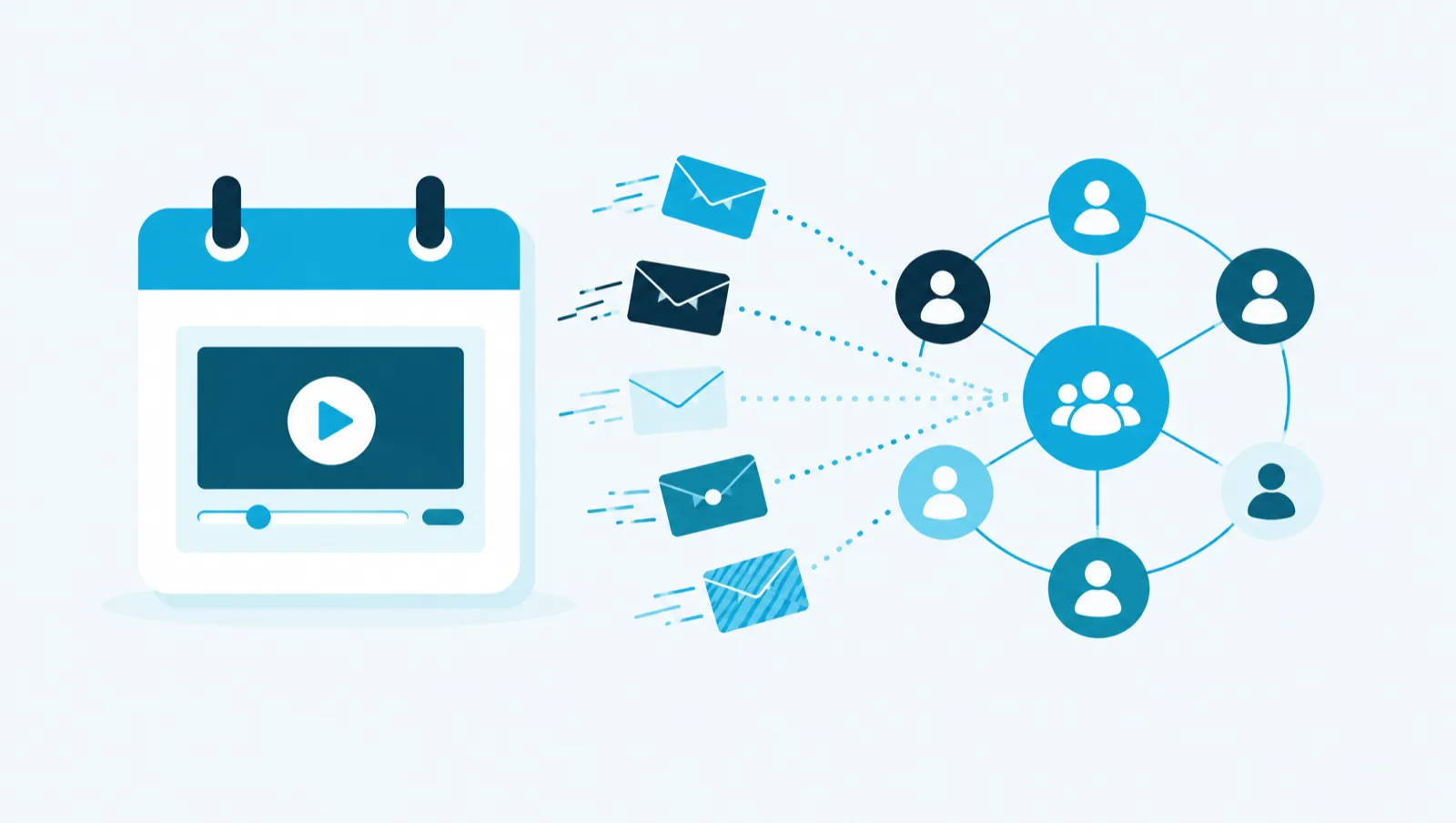
This article explains how to announce a webinar to your 1st-degree LinkedIn connections with a campaign. Each person receives a text written for them, and a follow-up goes only to those who have not replied. The first thing to set is the intake pace, because an announcement has a deadline.
LinkedIn only lets you send a message to a person who is already connected to you. For an announcement to your network, choose the "Network messaging" type. This type allows the steps Profile visit, Like, Comment, Message and Follow-up.
A Network messaging campaign only admits your 1st-degree connections. If you add other contacts, they are excluded when you add them, with the reason "Not 1st-degree". If you also want to reach people outside your network, create a second campaign of another type.
Take an agency that runs a webinar and wants to announce it to 150 1st-degree connections who match its Target "Mid-market CIOs". An identical message sent to all 150 gets noticed. Writing 150 messages by hand takes time.
In a Message step, you do not write the final text. You fill in the "Instructions for the AI agent": what the message must say, the tone, what to avoid, and the registration link. The AI then drafts one text per person, from these instructions and the person's record. For each text, it proposes three versions: "Main", "Other angle" and "Short".
For the follow-up, the "Message + follow-up" template in the "Templates" menu adds a message, then a follow-up 48 hours later if there is no reply. A person who replies leaves the sequence: they do not receive the follow-up. Their conversation appears in the Inbox.
Adding contacts sends nothing. Added contacts wait in the pool, with the status "Waiting for intake". Each day, the campaign admits a limited number of them into the sequence.
When the campaign is created, this number is 10 per day. With 150 people, the first messages therefore go out over 15 working days. For a dated webinar, this is often too slow.
The setting is in the campaign's "Settings" tab: "Contacts admitted per day, at most". The minimum is 1. For a Network messaging campaign, the maximum is the LinkedIn account's message limit, which is 80 per day by default. At 80 per day, the first 150 messages go out in two days.
Three points to keep in mind:
Two tools let you read the texts before they go out.
The rehearsal, in the "Rehearsal" tab, shows the exact text that would go out for each person, the planned time and the anti-ban limiter's verdict. Nothing is sent and nobody moves forward in the sequence. It also checks that two people do not receive the same text.
The "Approval required" mode, in the "Settings" tab, makes you approve each message and each follow-up in the "To approve" queue. It is off when the campaign is created. The "Prepare the next sends" button drafts the texts for the next sending day in advance, so you can approve them the day before.
Each drafted text costs 3 credits. One credit is worth one euro cent. For 150 people, the messages cost 450 credits. The follow-up costs at most 450 more credits, if nobody replies. The total is therefore at most 900 credits.
If the setting "Only admit leads qualified for the Target" is on, a person never evaluated for the Target is evaluated first, for 2 credits. This setting is on by default. Sending a message costs no credits.
From the "Campaigns" screen:
With the assistant, "Campaigns" tab:
Announce our webinar on 14 November to my 1st-degree connections in the Target "Mid-market CIOs", here is the link: https://example.com/webinar. Add a follow-up 3 days later for those who have not replied.
Add to the campaign "November webinar" the members of my Target "Mid-market CIOs" who are 1st degree. First tell me how many people that is.
The assistant first reads your LinkedIn account's capacity for the day. It builds the campaign up to the draft and runs the rehearsal. It never activates the campaign: you do that yourself, on the campaign screen.
The guide chapters that detail what this article describes.