


Campaigns
Announce a webinar to your 1st-degree network without copy-pasted messages
How to set up a Network messaging campaign to announce a dated webinar, with one text per person, a follow-up and the right intake pace.
5 min read
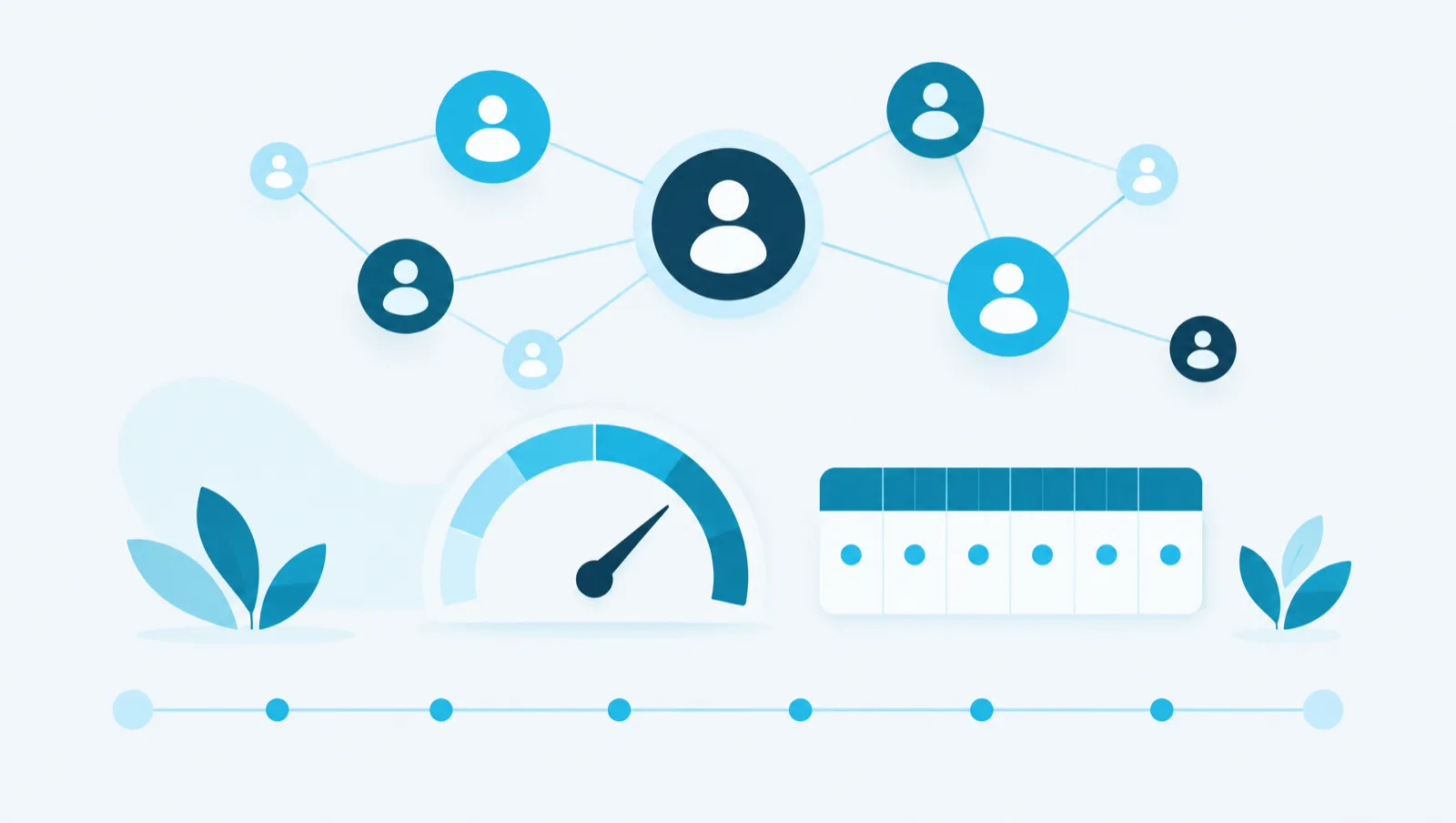
This article gives the limits that Maya Reach applies to each LinkedIn account: invitations, messages, profile reads. It also explains the ramp-up of a newly connected account, the send window and the spacing of actions. You will learn where to see these limits and how to set them.
LinkedIn can restrict an account that sends too many invitations or messages, or that acts at too regular a pace. LinkedIn does not publish official thresholds. The platform's limits are therefore deliberately cautious.
These limits apply per LinkedIn account, not per workspace. If several campaigns use the same account, they share these limits. A campaign's "Settings" screen then shows "Contested account budget".
When a limit is reached, nothing is lost. The action is postponed to the next day or to the next open slot.
The platform cannot decide in LinkedIn's place. It limits volume and spaces out actions. It does not remove the risk of restriction.
An account sends at most:
| Limit | Value |
|---|---|
| Invitations per day, classic LinkedIn account | 15 |
| Invitations per day, Premium or Sales Navigator account | 25 |
| Invitations per week | 100 |
After an account is connected, the limit rises in steps:
| Time since the account was connected | Per day | Per week |
|---|---|---|
| 1st week | 5 | 25 |
| 2nd week | 10 | 50 |
| 3rd week | 15 | 75 |
| From the 4th week | 15 or 25 depending on the account | 100 |
The limit applied is always the lower of the two: the ramp-up limit and the account type limit.
Pause after a refusal. If LinkedIn refuses an invitation because of a limit, the platform suspends invitations of that kind (with a note or without a note) for 12 hours.
Invitation note. A note is at most 300 characters on a Premium or Sales Navigator account, 200 otherwise. A note that is too long is refused, never cut. On a classic account, invitations with a note are turned off by default, because LinkedIn allows very few of them.
Pointless invitations. The platform does not invite a person who is already connected, a person out of the account's reach (3rd degree on a classic account) or a person who already has a pending invitation. These steps are skipped.
An account sends at most 80 messages and follow-ups per day. Above that, campaigns and the assistant stop. A reply that you type yourself in the Inbox still goes through, up to a safety limit of 160 messages per day. At 160, nothing more goes out, even by hand.
Profile reads are also limited. Campaigns, Autopilot and the Inbox crawl read at most 100 profiles per day. Your manual actions go up to 100 reads on a classic account and 200 on a Sales Navigator account. Post reads are limited to 100 per day.
If LinkedIn refuses a profile read, no more reads go out with this account until the time shown on screen. The platform also applies an overall budget of 200 LinkedIn calls per day and per account.
Volume is not enough: a pace that is too regular is also a reason for restriction. The platform therefore sets the timing and spacing of actions:
The pace of a campaign also depends on its intake. When it is created, a campaign admits 10 contacts per day, or fewer if the account's LinkedIn limit is lower. The maximum is the invitation limit for an Acquisition campaign and the message limit for a Network messaging or Follow-up campaign.
To see and set your account's limits:
Lowering the invitation limit is always applied. Raising it above 25 per day has no effect. The message limit can be lowered or raised: raise it with care.
To follow a campaign's day, open the "Tracking" tab, "Today" sub-tab. It shows the invitations, messages and profile reads remaining, the ramp-up and the pauses in progress.
You can also ask the assistant, "Command" tab:
How many people can I reach today?
The assistant reads your account's capacity for the day before proposing a pace. It never announces a volume it has not read.
Take a hypothetical example: a consulting firm connects a Sales Navigator account and wants to invite 100 people. In the first week, it will send at most 5 invitations per day and 25 over the week. The limit of 25 per day only applies from the 4th week.
The guide chapters that detail what this article describes.