


Inbox
Revive dormant conversations with the night crawl and the Inbox copilot
How the nightly crawl finds dormant LinkedIn conversations that match your Targets, and how to follow up with the copilot.
4 min read

This article presents three Inbox tools that reduce the time you spend replying to your prospects. The copilot suggests a text based on the conversation. Saved replies insert a text you wrote once. Drafts to review group the ready texts that wait for your decision.
The Inbox groups the conversations of your connected LinkedIn account. Reading messages costs no credits. The platform syncs the Inbox once a day. The "Refresh" button fetches new messages right away. A new sync is then possible 10 minutes later.
The filters at the top of the list sort the work:
When you open a conversation, the "Prospect context" panel shows the person's score against your Target, out of 10, the current campaign, their step and "About to go out". So you know who you are replying to before you write.
The quick actions menu (✨ icon) offers five actions:
| Action | What it does | Cost |
|---|---|---|
| Suggest a reply | Drafts a reply in your brand's voice, based on the whole conversation. | 3 credits |
| Suggest a time | Steers the conversation toward a live conversation and asks for availability. | 3 credits |
| Follow up | Follows up on an exchange that went quiet, without reproach or false urgency. | 3 credits |
| Proofread my draft | Fixes what is wrong in your text, without changing the substance. | 3 credits |
| Summarise the thread | Shows where the exchange stands, what the person asked for and what they promised. | 0 credits |
The suggested text is inserted into the input field. You review it, edit it if needed, then send it yourself. The copilot never sends on your behalf.
The "AI Copilot" button opens a conversation with the assistant about this thread. You can then give it more precise instructions.
Thank you for your message. We are just starting to think about our secondary sites. Do you have any experience to share?
Happy to help. What are the main priorities for those sites: availability, costs or planning the migration? That will help me suggest a relevant example.
Some replies come back often: the link to a presentation, the terms of a trial, an offer of a call. Saved replies are for these texts. They cost no credits.
Each reply has a "Label" of 80 characters at most and a "Text" of 4,000 characters at most. The variable {prenom} is replaced with the contact's first name on insertion. If the first name is unknown, it is removed.
Your workspace can keep 50 saved replies. Inserting a reply sends nothing: you review it, then click "Send".
A draft can come from the copilot or from the nightly crawl. It appears in the "To review" filter. The draft block shows its origin: "Drafted by the copilot" or "Drafted by the night crawl".
For each draft, you have three actions: "Edit the text", "Approve" or "Dismiss". An edited draft goes back to "To review": an earlier approval is cancelled. A dismissed draft can be put back for review with "Restore".
An approved draft goes out during the Inbox send window: Monday to Friday, 9 am to 6 pm, Paris time. If you approve it outside this window, it goes out when the window next opens. The draft block shows when it will go out.
There is no bulk sending of one reply to a whole segment today. To reply to several people, approve their drafts one by one.
A prospect's message is written by another person. It can contain a sentence that looks like an instruction. So the assistant does not read the raw message. It receives a controlled summary of the conversation: intent, tone, open questions.
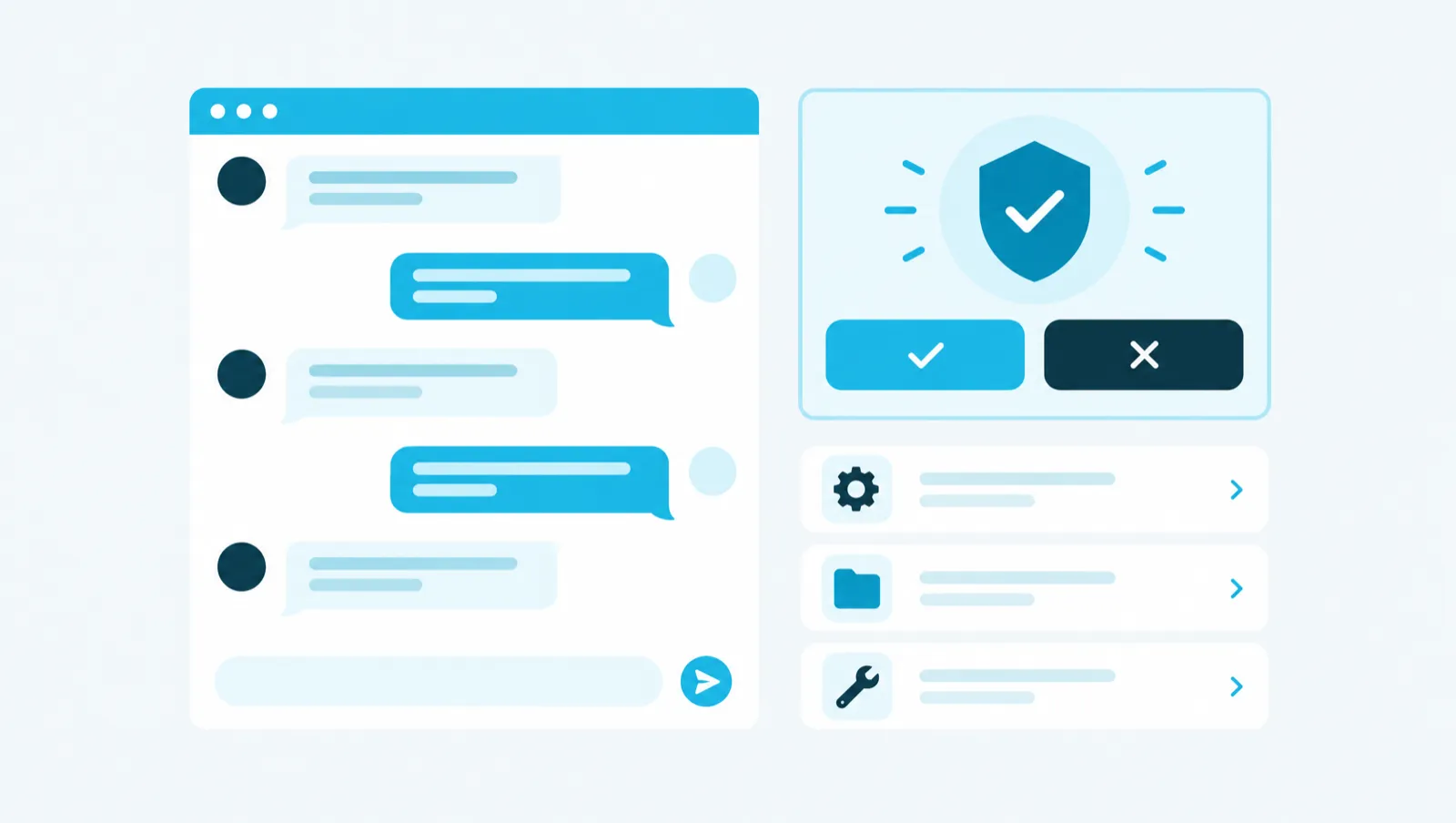
In the assistant's "Inbox" tab, a reply only goes out after an "Approval required" card, which shows the recipient and an excerpt of the text. Nothing goes out until you click "Approve".
Sending a reply costs no credits. It counts toward the account's message limit: 80 per day by default. Beyond that, a reply you type yourself still goes through, up to a safety limit of 160 messages per day.
To handle a conversation on screen:
To create a saved reply: in a conversation, open "Saved replies", then "Manage replies". Click "New reply", fill in the "Label" and the "Text", then click "Create".
With the assistant, "Inbox" tab, after you choose the thread:
Summarise this thread in a few sentences.
Suggest a reply that asks a question about the project timeline, without proposing a meeting right away.
Shorter, and suggest two slots on Tuesday or Thursday morning.
The guide chapters that detail what this article describes.