




Inbox · Assistant
Reply faster with the copilot, saved replies and drafts to review
Three Inbox tools to reply to prospects: the AI copilot, saved replies and the queue of drafts to review.
4 min read
The Maya Reach assistant lets you use the platform by writing what you want to get. This article gives ten requests to type as they are, with what the assistant does and what it costs. It also explains the approval cards, which appear before any action toward a person.
The assistant has six tabs: "Publish", "Campaigns", "Inbox", "Search", "Command" and "Intelligence". Each tab has its own tools and can only do what these tools allow. If you ask for something else, the assistant tells you.
Each tool call appears in a card, for example "Today's capacity" or "Create a campaign". The card shows a state: "Running", "Done", "Failed" or "Refused".
Write the result you want, with the information only you know:
For the rest (campaign name, send window, follow-up delay), the assistant uses a default value and tells you.
The Target names are examples.
1. "Command" tab: find out how many people to contact today.
How many people can I reach today?
The "Today's capacity" card shows the invitations and messages remaining today, and your balance. Cost: 0 credits.
2. "Command" tab: count, then qualify.
How many CTOs do I have in SaaS? Qualify them against my Target « SaaS CTO 10-50 » and give me the quote first.
The assistant counts the prospects, reads the day's capacity and shows a quote at 2 credits per prospect. It starts qualification after your agreement. Evaluations above the day's cap go out on the following days.
How many CTOs do I have in SaaS? Qualify them against my Target "SaaS CTO 10-50" and give me the quote first.
You have 64 CTOs in SaaS. Here is the quote to qualify them against the Target "SaaS CTO 10-50".
Qualify 64 prospects against the Target "SaaS CTO 10-50"
3. "Search" tab: search on LinkedIn.
Find fintech CTOs in France, 50-200 employees, on LinkedIn.
The assistant translates the locations and industries into LinkedIn filters, then runs a single search. A search costs no credits. It uses the account's search lines: 1,000 per day on a classic account, 2,500 on Sales Navigator.
4. "Search" tab: save the search and create a Target.
Save this search and create a Target from it.
The assistant shows you the proposed Target before creating it. A Target created by the assistant stays a draft: confirm it on the "Targets" screen.
5. "Search" tab: arm Autopilot.
Arm the autopilot on my Target « Retail CIOs » with 20 profiles per night.
An "Approval required" card shows the Target, 20 profiles per night, the nights the reserve will last and the maximum cost per night: 40 credits.
6. "Campaigns" tab: build an invitation campaign.
Build an invitation campaign for people in my Target « Operations directors » who aren't connected yet.
The assistant reads the day's capacity, finds the Target and counts the people at 2nd and 3rd degree. It creates an "Acquisition" campaign, adds the steps and the contacts, then stops at the draft.
7. "Campaigns" tab: see the texts before anything is sent.
Rehearse my latest campaign: show me the messages that would go out.
The rehearsal shows the exact text and the planned time for each person, without sending anything. Each text drafted costs 3 credits. A text already drafted is replayed for free.
8. "Inbox" tab, on a chosen conversation: reply.
Suggest a reply.
The "Summary of the received message" card shows the intent and the summary. The "Proposal" card shows the draft and its rationale. Cost: 3 credits. To send, an "Approval required" card shows the recipient and the start of the message.
9. "Intelligence" tab: follow a topic.
Follow LinkedIn posts that mention “generative AI” or “customer service”.
The assistant creates a watch with a LinkedIn keyword source. Collection runs in the background: the trends are not immediate.
10. "Publish" tab: draft a post for a Target.
Draft a LinkedIn post for my Target « Operations directors ».
The assistant reads the Target and your business profile, announces the chosen angle and drafts a post. Cost: 15 credits. It does not publish: you publish from the "Publish" screen.
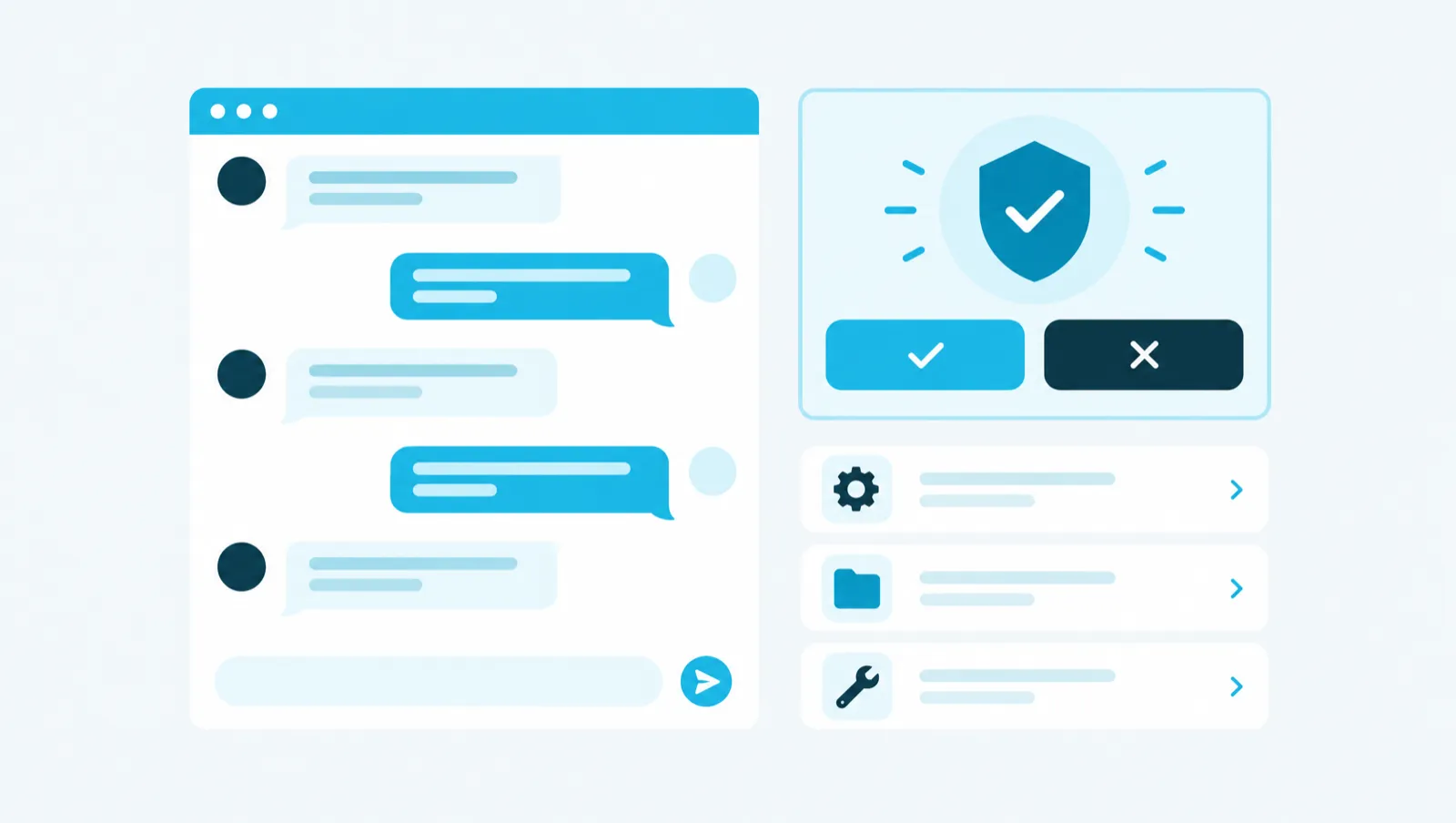
When the assistant proposes to send a reply, to activate a campaign from the "Command" tab or to arm Autopilot, it shows an "Approval required" card. The figures on the card are read by the platform, not written by the assistant. Nothing happens until you click "Approve". "Refuse" opens a "Refusal reason" field; after a refusal, nothing is done. While a card is waiting for your decision, the conversation is paused.
For work in several steps, the "Proposed plan" card lists the steps with a "Quote". "Launch" approves the whole plan; the plan stops at the first failure.
A conversation costs nothing in itself. Paid tools cost the same price as from the screens.
The guide chapters that detail what this article describes.